How To Get Verified On LinkedIn®

Verification On LinkedIn® enhances credibility and trust. Learn the steps to get verified, what it means for your profile, and how it can benefit your professional reputation.

Fox Tucker
LinkedIn® Coach:

Lesson Introduction

LinkedIn® verification can confirm specific information about your profile. Depending on your eligibility, this may include identity, workplace, or educational institution verification. The available route varies, so use this lesson to understand the options before starting a verification process.

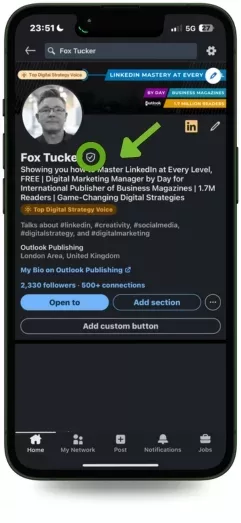
Authenticity is key to creating meaningful interactions. The verification badge on your profile indicates that you were able to confirm specific information about your account.

Having verified information helps provide authenticity signals to others that you’re who you say you are.

Seeing verified information on others’ profiles helps foster a trusted community so you can make more informed decisions around connecting with other professionals.

LinkedIn® says verified members see 60% more profile views and 50% more engagement on average. Treat those figures as LinkedIn®’s own platform data rather than independent evidence of causation.

LinkedIn® says profile verification is optional and available at no additional cost.
Choose the Verification Route Available to You

  • A current and valid Passport: 99% of current Passports are NFC
  • NFC equipped smartphone: If you are using Apple Pay or Google Pay then your smartphone has NFC
  • The LinkedIn® App installed on your smartphone

Another important requirement is that your name On LinkedIn® must be exactly the same as shown on your passport. So a David who likes to be called Dave, and an Elizabeth who likes to be called Liz will need to change their name On LinkedIn® before starting the steps below.

To get the verification badge I recommend removing emojis, punctuation, and swanky any qualifications from your name. MSc might look cool, but it’s not your name.

Verification Availability

Verification availability varies by country, employer, institution and verification method. Check the verification options shown on your own LinkedIn® profile rather than relying on a fixed country list.

  • Argentina
  • Australia
  • Austria
  • Bangladesh
  • Belgium
  • Brazil
  • Bulgaria
  • Cambodia
  • Chile
  • Colombia
  • Costa Rica
  • Croatia
  • Czech Republic
  • Denmark
  • Estonia
  • Fiji
  • Finland
  • France
  • Germany
  • Greece
  • Grenada
  • Honduras
  • Hong Kong
  • Hungary
  • Iceland
  • Indonesia
  • Ireland
  • Italy
  • Kenya
  • Laos
  • Latvia
  • Liechtenstein
  • Lithuania
  • Luxembourg
  • Malaysia
  • Malta
  • Mongolia
  • Morocco
  • Nepal
  • Netherlands
  • New Zealand
  • Nigeria
  • Norway
  • Panama
  • Paraguay
  • Peru
  • Philippines
  • Poland
  • Portugal
  • Republic of Cyprus
  • Romania
  • Saudi Arabia
  • Singapore
  • Slovakia
  • Slovenia
  • Spain
  • Sweden
  • Switzerland
  • Thailand
  • Timor-Leste
  • United Arab Emirates
  • United Kingdom
  • Venezuela

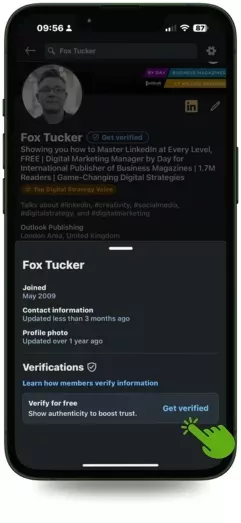
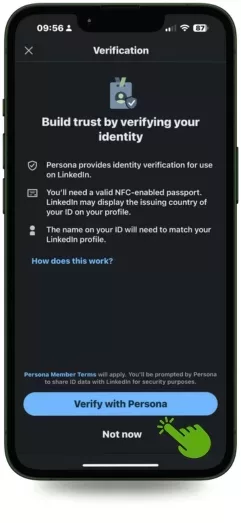
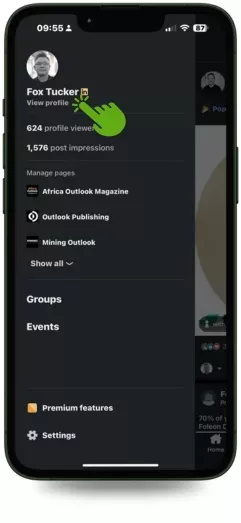
Steps 1 – 3: Tap, Tap, and Tap

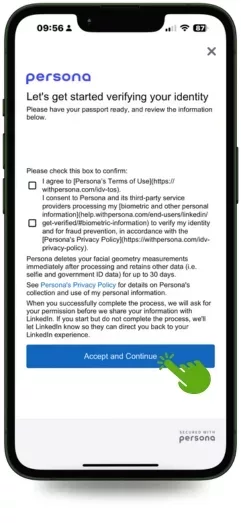
Step 4 : Agree To The Terms & Conditions

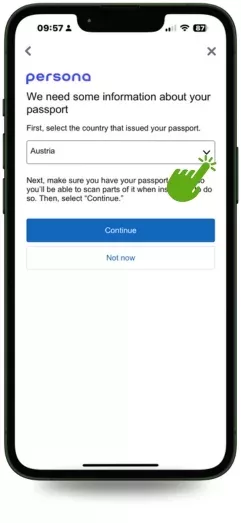
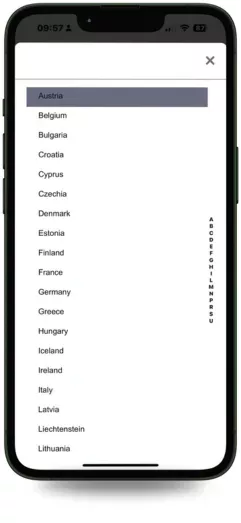
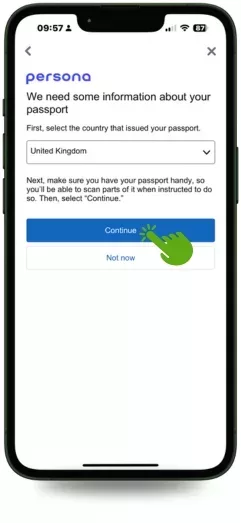
Step 5: Select Your Country

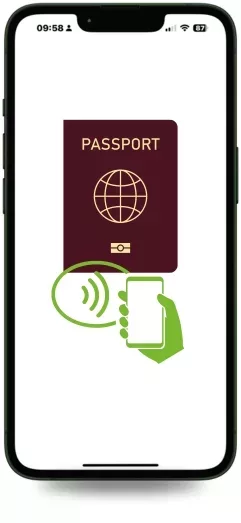
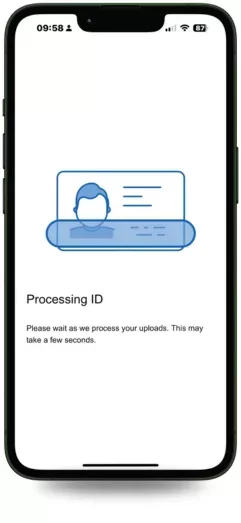
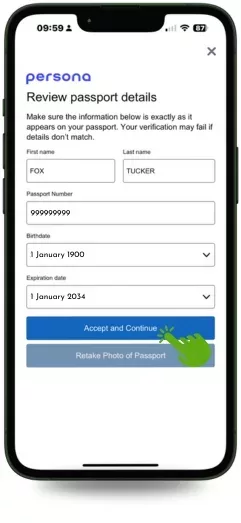
Step 6: Scan your Passport and Confirm Your Details

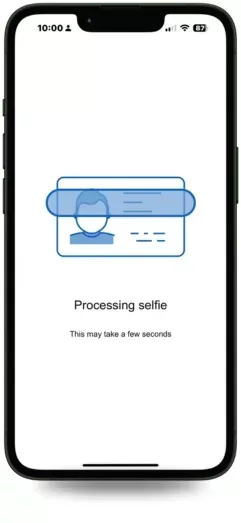
Step 7: Take A Selfie and Submit

Just a headshot is required. No trout pout or filters

Share this LinkedIn® Course
LinkedIn® Coach:Fox Tucker
LinkedIn® Trainer / Digital Marketing Director
Follow:
Digital Marketing Director | LinkedIn® Trainer | Fox has optimised 300+ LinkedIn® Profiles, manages 30+ LinkedIn® Company Pages, and leads the LinkedIn® strategy for a team of 50+ colleagues at Outlook Publishing Ltd. Fox also shares LinkedIn® strategies, current best practices, and tactics on www.leaders.social Fox specialises in providing Company Page Management